Showing posts with label Unity 3D. Show all posts

Tuesday, September 2, 2014

Why Coherent UI?

UnityGirl here to explain why Brune decided to go with Coherent UI over the other options for Unity3d in-game Web-views. Come sit on the story-telling rug and hear a tale of three little Web Views and a very persistent girl dev.
_______________________________________________________


Brunelleschi: Age of Architects has been a complex fully Web-Page based game for some time. A few months ago I started making the 3D client in Unity. Obviously a great way to encourage immersion is to integrate the web game with the 3D game through playable web views. But how?


Hungry For Porridge
Searching for the right Web View software was very much like being Goldilocks in a mysterious cottage full of disembodied web pages. Choosing the correct one was a matter of trial and error as we discovered what we needed versus what the software offered. I also had to consider my own technical inexperience with web software and consider what was quick and easy to use without learning more programming languages in order to complete the fairly simple goal.

Action Page of the Brune Web Game
What We Needed
Every dev makes choices based on the needs of their game. Since Brune is already a web game, we really wanted to have interactive web views inside the Unity client. That way, the players could play the game while they were playing the game!  (^_^)

Too Hot
U Web Kit - Didn't Hold Session
We started with U Web Kit as the first obvious solution, but it had one major problem: It wouldn't hold a session between scenes. This meant players would have to log into their character -every time- they switched Unity scenes. Uncool.

Too Cold
Awesomium - No in-Game Web Viewing
We then tried Awesomium, which is admittedly great. Good web views and convenient scripting mechanisms AND it holds session between scene changes. However, it also had one vital problem: I couldn't figure out how to make web views in a scene that wasn't dedicated to them. This means we couldn't use Awesomium to simulate game play (ie: access web-character's storage through an interface in the 3D warehouse)

Just Right
Coherent UI - Totally Versatile
Finally, we tried Coherent. Coherent not only holds session and allows you to make web views inside your game scenes, it's support team also answers your questions promptly and thoroughly! This means that even when I run into a hitch with it, I get an answer quick. The devs are quick to help figure out which side the error is on (yours or theirs) and get it fixed.
Coherent UI in Action in our Unity Game


While it's possible your game will need something more conveniently offered by someone else, Coherent UI is a great bet for

  • Web Views that hold session between scenes
  • Web Views inside your game scenes that players can interact with.


______________________________________________________________

Thanks for reading! Let me know if there's something you're curious about, otherwise I'll keep picking techniques and tips at semi-random. Comment or find me on Twitter at @AesopRebecca.
Official Hours: 4pm - 12am PST
Unofficial Hours: 4pm - 5am PST

All blog posts by UnityGirl are inspired by my work with Brunelleschi: Age of Architects on the Aesop Games team. Check out our Crowd Funding page(s)!


Saturday, August 30, 2014

Unity Tutorial: Easy Teleport in JS

UnityGirl's Easy Teleportation
_______________________________________________________

Whether it's SciFi or Fantasy, many games make use of convenient teleportation. There are several ways to do this in Unity, and some of them are a lot bigger pains than others. Here's the quickest, easiest way I've found to get your character where it needs to be with no guessing at large world coordinates.

Teleporter Setup
Teleporter Setup


This works along the same principle as the Building Instantiator, using an existing Game Object in the  scene to represent where we want to go.

Capsule Locator Sitting in a Chair
Locator
  • Create a GameObject to represent where you want your character to be
    • I use one I can see, then turn off the Mesh Renderer and Collider
  • Put your Locator object wherever you want your player to teleport to
    • make sure it's high enough you won't fall through the floor/ground
  • TURN OFF the Mesh Renderer** and any Colliders***
  • Name it something recognizable
_______________________________________________________
Setting Player Tag

Player
  • Make sure your player has the "Player" tag
    • And that nothing you don't want to teleport doesn't

_______________________________________________________

Script
  • Establish your Locator
  • Find your Player
  • Tell the Player to be at the Locator based on some criteria
    • We're using OnMouseDown so clicking the script-bearing object will trigger the 'port.


_______________________________________________________

The Script

#pragma strict

var locator : GameObject;
var player : Transform;
player = GameObject.FindGameObjectWithTag("Player").transform;

function OnMouseDown () {
player.position = locator.transform.position;
}
_______________________________________________________

Use

  • Attach the script to a Game Object
  • Assign the Locator in the Inspector or GameObject.Find() it's unique name
  • Hit Play
  • Click on the script-bearing Game Object
  • Teleport!
_______________________________________________________

Alternative Teleport Triggers
  • Other button based triggers
    • ex: OnMouseUp, Input.GetMouseButton(), Input.GetKey(Up/Down) and so forth
  • OnTrigger Enter or OnTriggerExit
    • For this you will want to place the script on some kind of trigger object for the character to walk/fall into with the collider marked "Is Trigger"
    • ex: simulated "trip wire" with low to the ground stretched GameObject with 'trigger' collider
  • On a Timer
    • There are many kinds of timer scripts, I'll cover some simple favorites in the near future
  • Based on some other random game criteria
    • ex: player solves puzzle, puzzle success bool triggered, player teleports based on boolean trigger
______________________________________________________________

See It In Action


______________________________________________________________

Tips
  • ** If you haven't turned off your Mesh Renderer, you'll be able to see your Locator
  • *** If you haven't turned off your Collider, you might get stuck inside your Locator
______________________________________________________________


All blog posts by UnityGirl are inspired by my work with Brunelleschi: Age of Architects on the Aesop Games team. Check out our Crowd Funding page(s)!


Tuesday, August 26, 2014

Unity Tutorial: Instantiating a Building on a Lot - JS


Here's a quick guide to how to Instantiate a Prefab to a specific position and rotation. The example I'll be using is calling a pre-made building (prefab) onto a lot, but the scripting operation can be used for any location-specific Instantiation.


______________________________________________________________

Object and Target

The key to this technique is to have a target-object that will represent the position and rotation you would like your object to take. For the sake of this tutorial, we'll use a Lot. This is a square with the scale dimensions of  40, 1, 40 and given a dirt material.

This is a Cube Game Object flattened in a large square set in a terrain. It is serving as my lot, but you can use anything as your position-base.
Model Street Lot
Now here's the script in Unity's very own JavaScript. This script has been tested and should work if you

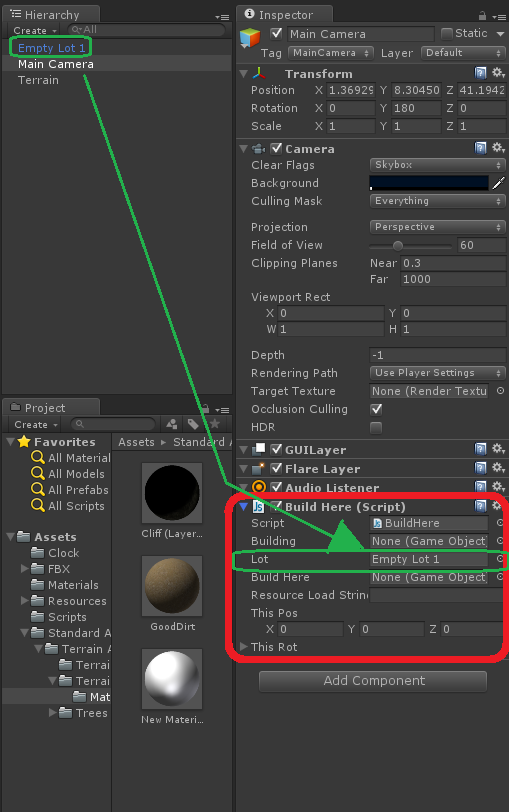
  • Assign "lot" to your target Game Object in the scene
    • drag object from Hierarchy into "lot" slot in the Inspector
  • Store your Building prefab in your Resources folder
    • drag building object into Project to save it as a Prefab
  • set "resourceLoadString" as the path to your prefab in your Resources folder
    • ex: Bakery is in Assets/Resources/Buildings
    • resourceLoadString = "Buildings/Bakery"
______________________________________________________________

The Script

#pragma strict

var building : GameObject;
var lot : GameObject;
var buildHere : GameObject;

var resourceLoadString : String;

var thisPos : Vector3 = new Vector3();
var thisRot : Quaternion = new Quaternion();

function Start () {
//sets your building's position to the same coordinates as your lot
thisPos = lot.transform.position;
//this raises your building up a bit above the lot so you don't get z-fighting flickers
thisPos[1] = thisPos[1] + 0.45f;

thisRot = lot.transform.rotation;

//this string should be your path through your Resources folder
//if you want the building to build on some kind of condition, use these lines inside your condition {}
resourceLoadString = "Buildings/Bakery";
buildHere = Instantiate(Resources.Load(resourceLoadString), thisPos, thisRot) as GameObject;
}

______________________________________________________________


Visual Guides


______________________________________________________________


See It In Action

Apply the script to one of the GameObjects in the scene. I use the Main Camera because it's not going anywhere.

This same premise can be applied to creating any prefab at a GameObject determined position and/or rotation. ^_^
______________________________________________________________

All blog posts by UnityGirl are inspired by my work with Brunelleschi: Age of Architects on the Aesop Games team. Check out our Crowd Funding page(s)!